Four practical file-size targets
Choose a 2 MB, 1 MB, 512 KB or 256 KB target. Set dimensions, frame rate and color count; the encoder retries with smaller settings if needed to meet that limit.
Give your GIF a lighter footprint. Choose a file-size target, compare the finished result and download when it looks right.
Choose a file or drag it onto this canvas.
Animated GIF · Up to 10 MB / 10 sec / 300 framesBUILT AROUND ONE JOB
Everything on this page supports the same focused workflow: open your source, make the edit you need, preview it and export a GIF. Your source is processed locally in your browser.
Choose a 2 MB, 1 MB, 512 KB or 256 KB target. Set dimensions, frame rate and color count; the encoder retries with smaller settings if needed to meet that limit.
Your original GIF is processed in your browser rather than uploaded for conversion. It can contain up to 300 frames and 10 seconds, within the 10 MB source-file limit.
Compare the source preview with the actual compressed GIF. The result panel shows original and new file sizes, output dimensions and frame rate before you download.
See the percentage reduction from your original GIF. Already optimized sources may become larger; the tool tells you when re-encoding has not reduced the size.
Export creates a new GIF download; it never overwrites the source on your device. Compare the result with your original when fine detail or motion smoothness matters.
Every compression target on this page is free and needs no account. For captions or optional HD output, open the Add text to a GIF tool instead.
THREE STEPS. ONE GREAT RESULT.
Upload a GIF of up to 10 MB and 10 seconds. Your file is decoded in the browser, then sampled at up to eight frames per second. Detailed, high-frame-count GIFs may take longer to process.
Choose a target of 2 MB, 1 MB, 512 KB or 256 KB. Set a maximum dimension up to 360 pixels, a frame rate and a color count. The encoder can lower these settings further to meet your target.
Review the actual compressed GIF beside its original and new file sizes, output dimensions and frame rate. Download the result when you are happy with it. A compact source may become larger when re-encoded; the original is never overwritten.
FROM SOURCE TO SHARE
Real source media, real MemeLoop exports. Compare the before and after, then open an example to make it your own.
MADE WITH MEMELOOP
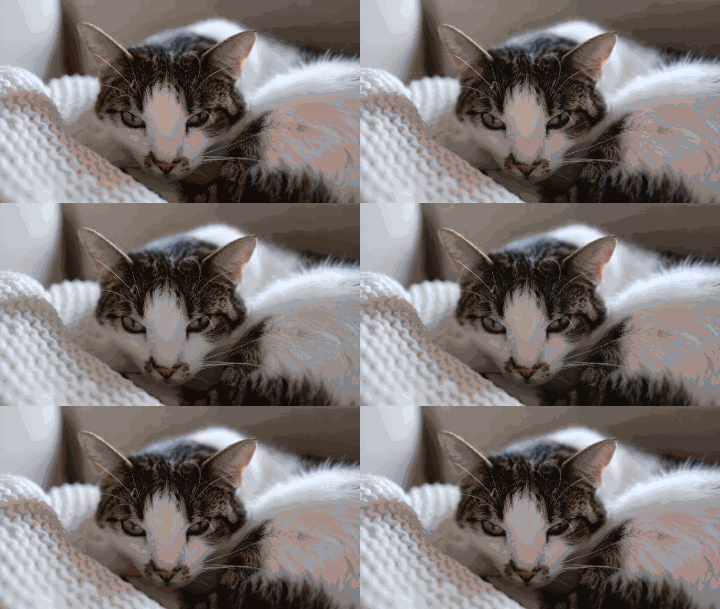
This actual export is about 81% smaller. Compare the softer, smaller result with the original before deciding which suits your message.
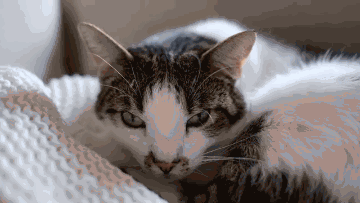

Media by Francesco Ungaro on Pexels · Pexels License.
A three-second excerpt, resized to 640 × 360. The uncaptioned GIF was exported with MemeLoop’s video to GIF tool.
SCENARIOS & SOLUTIONS
Compression may reduce dimensions, colors or frame rate. Try a larger file-size target and higher quality settings, then compare the actual result before downloading.
Shorten it to 10 seconds before uploading and keep the file within 10 MB and 300 frames. The editor does not provide a trimming timeline.
Choose a larger file-size target or a shorter, less detailed source. The tool reports an error if its compression passes cannot meet the selected target.
Transparent areas are flattened onto the editor's dark background during this workflow. It is a new flattened GIF, not a transparency-preserving optimizer.
GOOD TO KNOW
Choose 2 MB, 1 MB, 512 KB or 256 KB. A successful result meets the selected target; if it cannot, the tool shows an error so you can try a larger target.
Yes. The standard version may use fewer colors, smaller dimensions or a lower frame rate.
No. Transparent areas are flattened to the dark editor background.
Not in this version. Trim or shorten it before uploading.
No. An already optimized GIF can become larger when re-encoded. The result panel compares actual sizes so you can keep your original when it is smaller.
Processed on your device. Free standard export. No watermark.