Turn up to 80 images into one GIF
Select JPG, PNG or WebP frames with matching dimensions. The images to GIF maker combines up to 80 frames with a total upload limit of 10 MB and a maximum sequence length of 10 seconds.
Turn your pictures into a loop. Arrange the frames, set the pace and add a caption, all in your browser.
Choose a file or drag it onto this canvas.
JPG, PNG or WebP · Matching dimensions · Up to 80 images / 10 MBBUILT AROUND ONE JOB
Everything on this page supports the same focused workflow: open your source, make the edit you need, preview it and export a GIF. Your source is processed locally in your browser.
Select JPG, PNG or WebP frames with matching dimensions. The images to GIF maker combines up to 80 frames with a total upload limit of 10 MB and a maximum sequence length of 10 seconds.
Move frames left or right, remove unwanted pictures and adjust playback from one to eight frames per second. The minimum speed keeps your loop within 10 seconds.
Add one caption or several lines to the whole animation. Drag them away from important details and use the shared size control to balance readability with the artwork.
Select a person in the sequence when text should travel with them. Review the result before export, since changes between frames can make automatic tracking uncertain.
Your source images are processed on your device to build the GIF. Keep the original files until you are happy with the preview and the downloaded loop.
Standard output is free, unwatermarked and capped at 360px and 2 MB. Compression may reduce detail or frame rate; optional HD output up to 720px uses one credit.
THREE STEPS. ONE GREAT RESULT.
Choose up to 80 JPG, PNG or WebP images, with matching dimensions and a combined size of at most 10 MB. Check the numbered thumbnails, move frames left or right, or remove a frame to build your sequence.
Set the playback speed between one and eight frames per second. The minimum speed depends on your frame count so the loop stays within 10 seconds. Preview the animation and add optional captions before export.
Choose free standard GIF output or spend one credit on an HD export. Standard output is compressed to 2 MB or less; compression may reduce its dimensions or frame rate for detailed animations.
FROM SOURCE TO SHARE
Real source media, real MemeLoop exports. Compare the before and after, then open an example to make it your own.
MADE WITH MEMELOOP
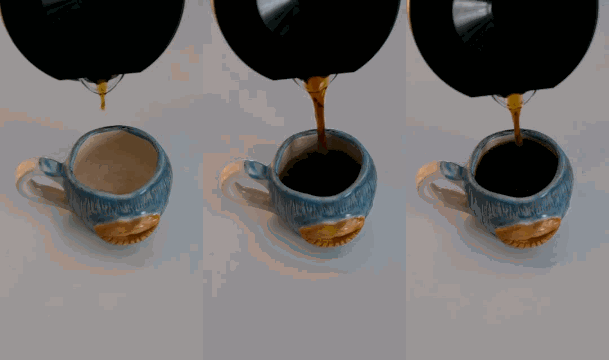
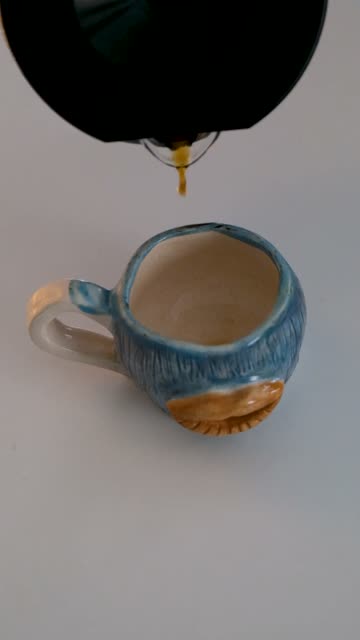
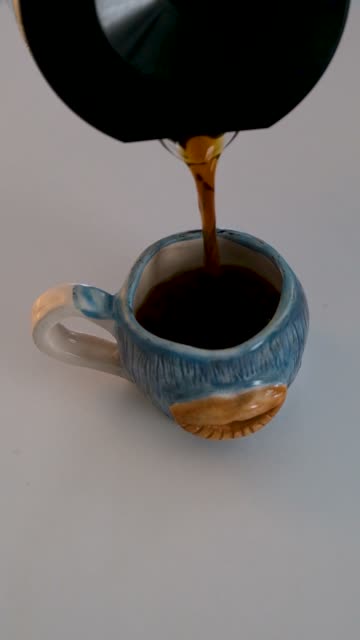
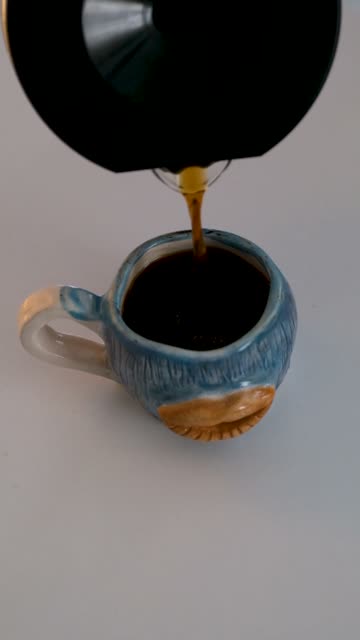
Three stills show a cup filling up. Combine them in order at one frame per second to make a simple process animation for a café update or how-to post.
 1
 2
 3
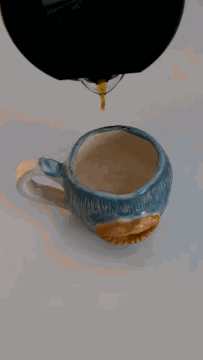
Media by Çağrı KANMAZ on Pexels · Pexels License.
Source images extracted at 0, 3 and 6 seconds from the credited video, then resized to 360 × 640. The image sequence was assembled in MemeLoop.
SCENARIOS & SOLUTIONS
Make every source image the same pixel dimensions, with at most 4096px per side and 16 million pixels per image. Resize mismatched images before selecting them.
Use the arrows beneath each thumbnail to reorder your frames. The live preview immediately reflects the updated order.
Use the playback speed slider to choose one to eight frames per second. For larger sequences, the minimum speed increases to keep the loop within 10 seconds.
Standard export retries at lower dimensions and frame rates to stay within 2 MB. Fewer, simpler frames can preserve clarity better than a dense sequence with many changing details.
GOOD TO KNOW
You can use up to 80 images with a combined size of at most 10 MB. They must have the same dimensions, at most 4096 pixels per side and 16 million pixels per image.
No. Resize them to identical dimensions before selecting them.
Yes. Use the playback speed slider beneath the preview. It supports one to eight frames per second, with a minimum that keeps your sequence within 10 seconds.
Use the left and right arrows under each numbered thumbnail to move a frame. You can also remove individual frames before exporting.
Standard exports do not require an account. HD export requires sign-in and one credit.
Processed on your device. Free standard export. No watermark.